How to Use Mashup Filter Widget
VIDIZMO Mashup Filter widgets are independent JavaScript-based controls that can be embedded into external websites. These widgets facilitate content filtering in the Media Library Widget by various attributes, including Category, Format, Author, Tags, and Custom Attributes.
Prerequisites
- The Integration Apps permission is enabled for your group.
- Both the portal domain and the web app domain must be secured with HTTPS.
Add Widgets App
- In VIDIZMO, select the menu icon in the top-left corner to open the navigation pane.
- Expand the Admin section and select Portal Settings.
- Go to Apps > Integration Apps.
- Select Add New Apps.
- In the Apps Catalog dialog box, select the + icon next to Widgets App to add it.
Configure Widgets App
- On the Integration Apps page, select the settings icon on the Widgets App.
- In the Widget App - Settings dialog box, configure the following fields:
- Application Name
Enter a name for your widget application (e.g.,
Widgets App). - Application Id A unique system-generated ID for your widget application. This ID is used for authentication purposes. Select the copy icon to save it.
- Whitelisted Domain
Enter the authorized domains where the widget is permitted to be embedded. Type the domain name and press Enter to add it. You can add multiple domains (comma-separated) or use an asterisk (
*) to allow any domain. - Client Secret A unique system-generated secret used for authentication. The Client Secret is only required to play protected media, anonymous media can be played without it. Select the copy icon to save it. To learn how to configure authenticated media playback within widgets, see Authentication.
- Expiry Select a date after which the widget will no longer function. To resume functionality, update the expiry date.
- Application Name
Enter a name for your widget application (e.g.,
- Select Save Changes.
Enable Widgets App
- On the Integration Apps page, turn on the toggle for Widgets App.
Use Mashup Filter Widget
To embed the Mashup Filter Widget on your website, add the required VIDIZMO scripts, authenticate, and include the widget HTML tag. For detailed code examples and API reference, see the JavaScript Widgets API Reference.
- Add the VIDIZMO scripts to your application, replacing
portal-addresswith your VIDIZMO portal's address. - Add user credentials using your Application Id and Client Secret for authentication.
- Import the necessary VIDIZMO functionality scripts.
- Add the Library Filter Widget HTML tag with the appropriate attribute values. Ensure
data-widgetis set totrueand theidis unique.
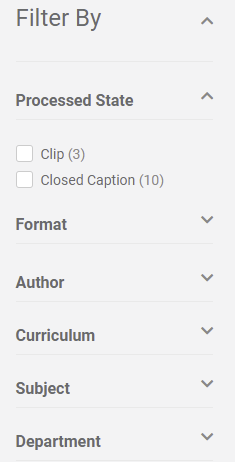
The Mashup Filter Widget displays filter options such as Processed State, Format, Author, and custom attributes, allowing users to filter content in the Media Library Widget.